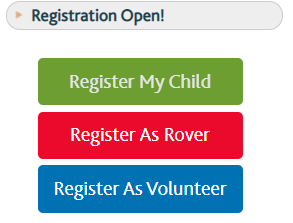
To Register, login to your MyScouts account and select 'Register As Rover'
If you are a new member, please click HERE to begin the process.
Using Join Scouts
- All Rovers, new and Returning, register at www.myscouts.ca/join.
- Click on ‘Start Registration’ to complete your profile if you are a new member. If you are a returning member, you will need to sign in to your MyScouts account. From your MyScouts account, please select 'Register As Rover' to go to the Join Scouts page.
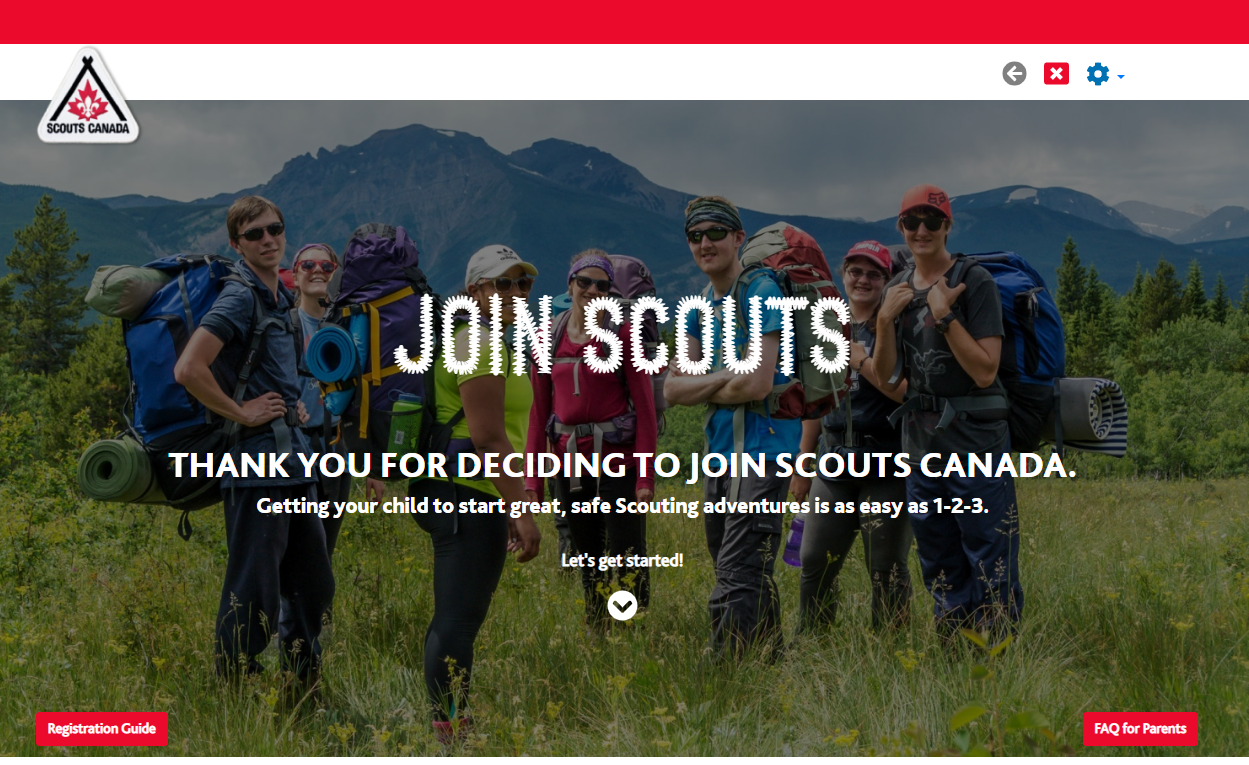
- The registration system will recognize that you are over 18 and display you as a Parent (please ignore). Please choose the 'Select Group' option to confirm the Group you wish to register with.
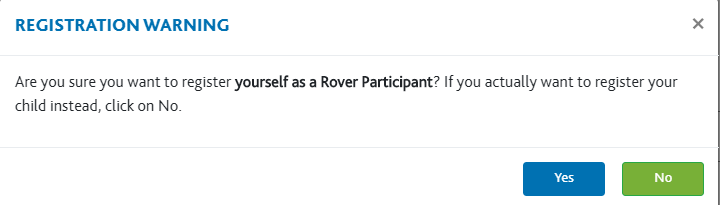
- A prompt will ask you to confirm if you intend to register yourself as a Rover or if you wish to register a child instead. Please select Yes to proceed.
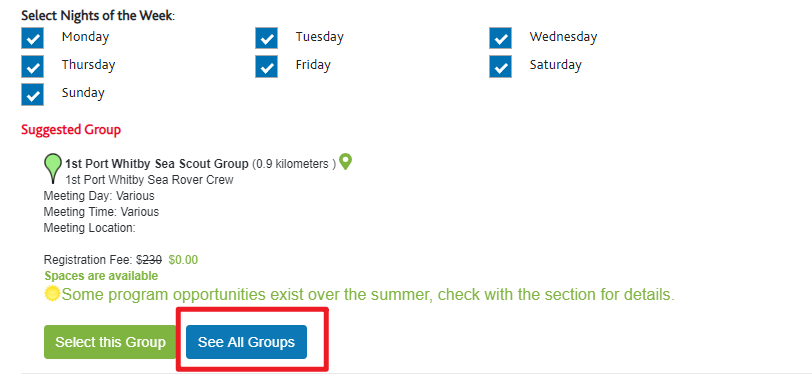
- The system will pre-select the nearest Group with vacancies available based on your postal code. If you do not wish to register in this Group, please select 'See All Groups' to display a full list of Local Groups.
- The next screen is where you enter your reference information. Please provide five references. A third-party organization will contact all references using email and will record the first three responses. Please provide full names, email addresses and your relationship with the reference.
Applicants and references may not be related by blood, adoption, or marital status due to inherent bias.
- Once you have entered all the references, you will return to the My Family screen. Please tick the box under Sign Up next to your name and click on Continue to proceed.

- You will next be asked to provide information about your interest in Volunteering with the Group. Please select any/all/none of the aspects in which you would like to be involved and click on Continue.
- You will then need to review the Terms and Conditions of the registration and consent to the Scouts Canada Medical and Privacy Policies.
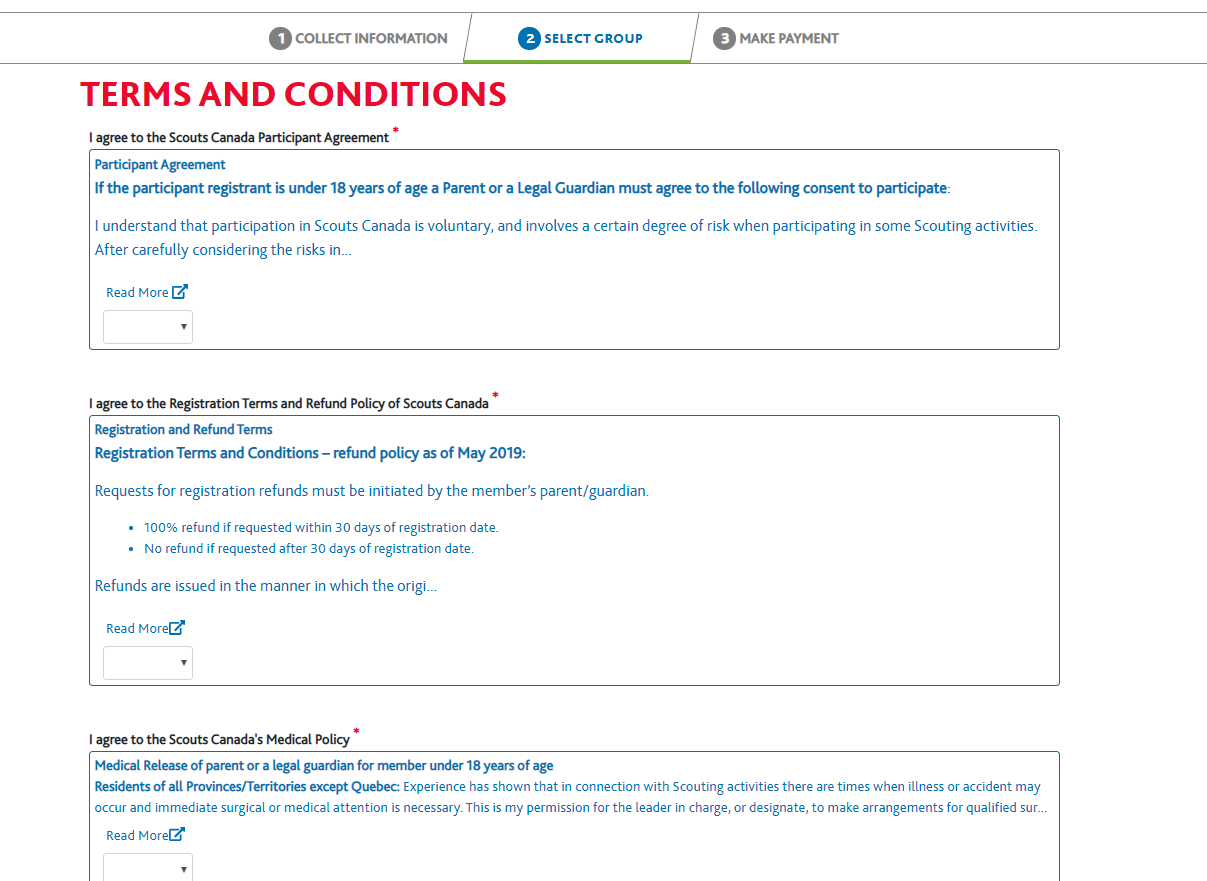
- After agreeing to terms and conditions, you will be asked if you are interested in donating to Scouts Canada. You may continue after providing your answer.
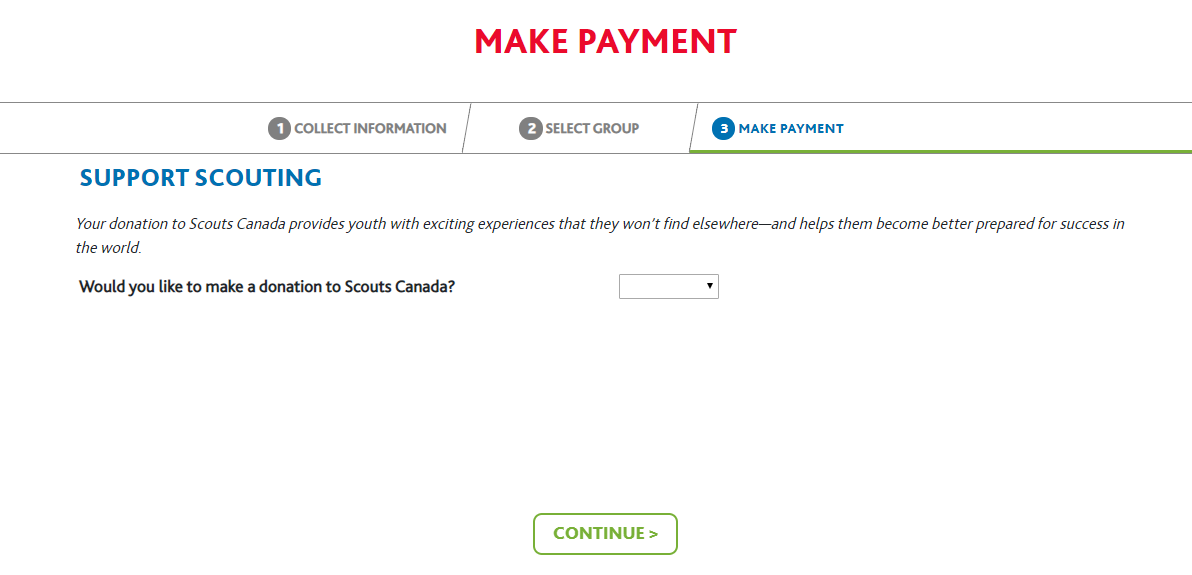
- This screen should display a $0.00 fee as Rovers are not subject to a participation fee.
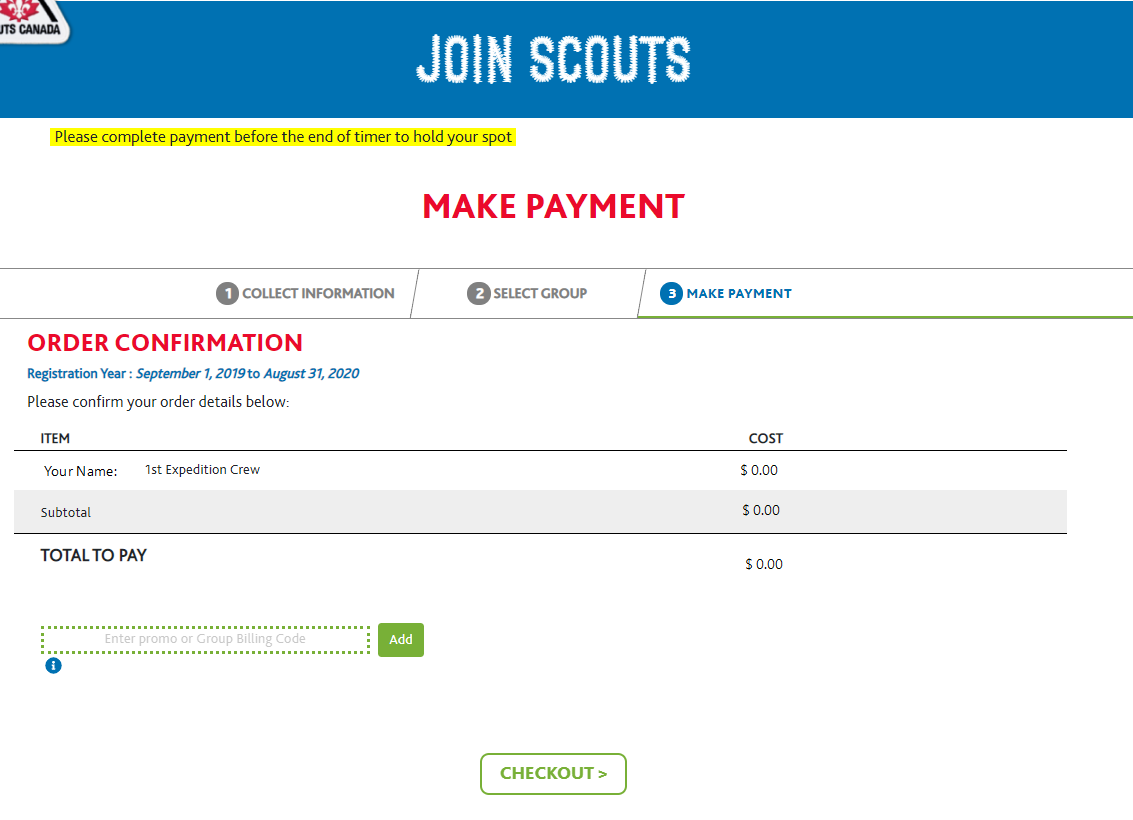
- After selecting 'Checkout' you will receive a confirmation of your registration.
How to resume a lost registration
If you are forced to abandon this process through whatever reason, power cut, internet outage etc, you will be able to resume your registration. When you log back into myscouts.ca, you will see a tab titled ‘Incomplete Registrations’.
Simply click ‘Resume’ to resume where you left off, or ‘delete’ to get rid of this registration and associated information.

How to Register for a second Rover Crew
Due to the service-oriented nature of Rovers, it is very common for Rovers to participate in more than one Crew, particularly if they are following a vocational stream of the Rover Scout program, like MedRovers. Rovers are now able to self-register for more than one Rover Crew using Join Scouts. In order to register for an additional Crew, your primary Rover Scout role must be listed as Active in MyScouts.
To register for an additional Crew, please sign into your MyScouts account and select the 'Register As Rover' option from the left-hand menu to go to the Join Scouts page. When you arrive at the My Family page, your status should be listed as Registered and the Sign Up button will appear under the Fee column. Please click on Sign Up to select an additional Group.

The Group Selector may suggest the same Group that you are already registered with if it is the closest one to you based on your postal code. To select another Rover Crew, please use the See All Groups button to search all local Groups.
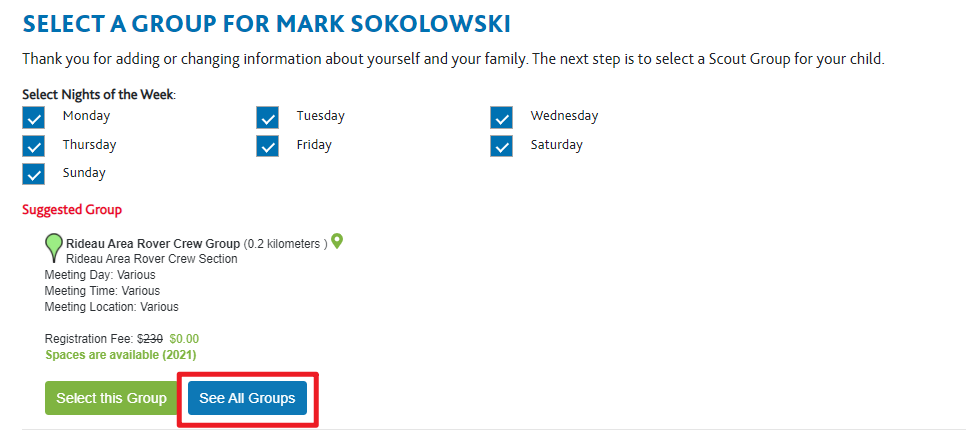
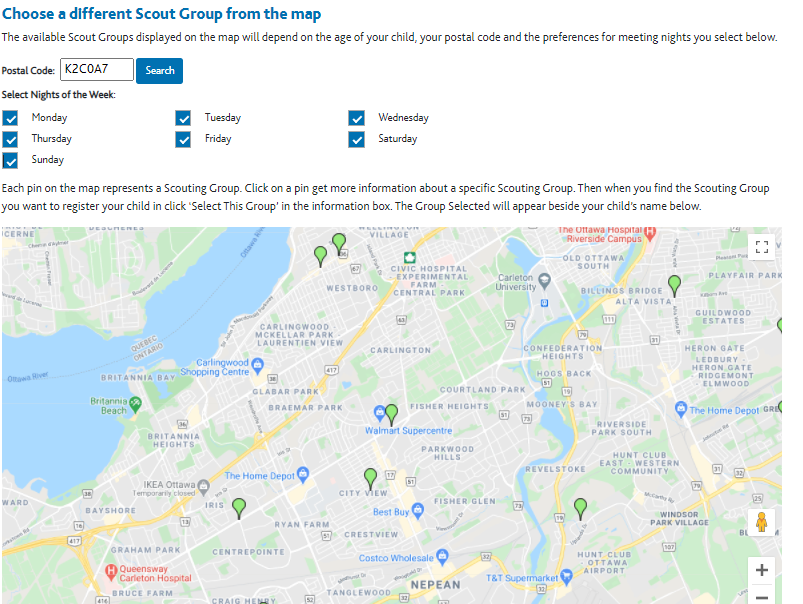
Proceed through the registration forms as you did during your original registration and agree to the Terms and Conditions. Once the registration has been completed, you will return to MyScouts and your new role will appear as 'pending' with any outstanding requirements listed next to it. The role will be automatically activated once all requirements have been met.
Transitioning from Venturer to Rover
If your youth is currently a Venturer and has turned 18 or will be turning 18 soon, they will need to be given access to their account to self-register as a Rover for the following year. Venturers who turn 18 during the registration year may continue participating as Venturers until December 31.
If registering for the following year before their 18th birthday, the parent must complete the Rover registration, as the youth is still under 18. Click on Register as Rover and select your youth's name from the My Family list.
If registering for the following year after their 18th birthday, then the youth will click on Register as Rover themselves.
Please follow the steps below to transition your youths account so they have access to the online training required to be an Active Rover. This can be done in advance of their 18th birthday so they can start on the screening. The parent will continue to have access to the account until the youth turns 18 and can register and sign the Terms and Conditions themselves.
Step 1. The Parent/Guardian logs into their My Scouts account and selects the 'My Family' tab followed by the  icon beside the youths name.
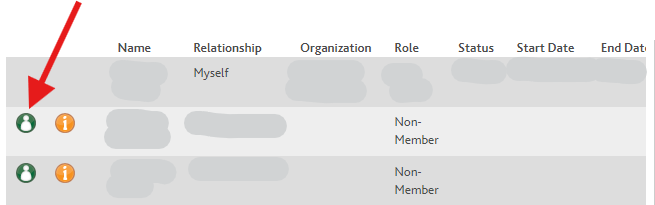
Step 2: Once on the youths profile, update the 'Contact Email Address' in the youth account to a new email address that is not currently in use for a MyScouts account. Under "Member Options" Contact Info and update the youth's email address to a new address not already being used in MyScouts.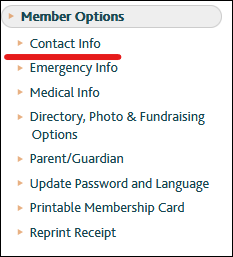
In the YOUTH account update the email address to a new email address that is not currently in use in MyScouts. This is the email address the youth will use to access their account independently. They need to be able to do this in order to complete online learning and future Rover registrations.
Step 3: Log out of MyScouts
Step 4: Log back into MyScouts, then enter the new youth's email address in the email field and leave the password field blank. Select 'I forgot my password' to have a 1 time password link emailed to that email address. This needs to be done because this new account doesn't have a password connected to it yet. Please note it may take up to 24 hours for the system to recognize the new account. If youth are unable to reset their password, please try again later or submit a ticket for assistance by clicking HERE.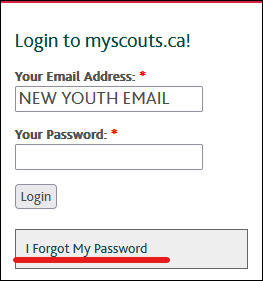
Step 4: Youth will need to select the one-time access link from their email inbox & follow the directions to set a password.
Once set, youth will be able to login to their MyScouts accounts independently.
If youth are unable to gain access to MyScouts via these steps please contact the Support Centre by clicking HERE.
Support Centre
Still need help? Please feel free to contact the Scouts Canada Support Centre: